
How to Download Multiple TikTok Videos from One Profile
Saving one clip is quick. Saving a whole set from the same creator is where people lose track, overwrite files, or give up halfway through. Here is the routine I use to get through a profile without a mess at the end.
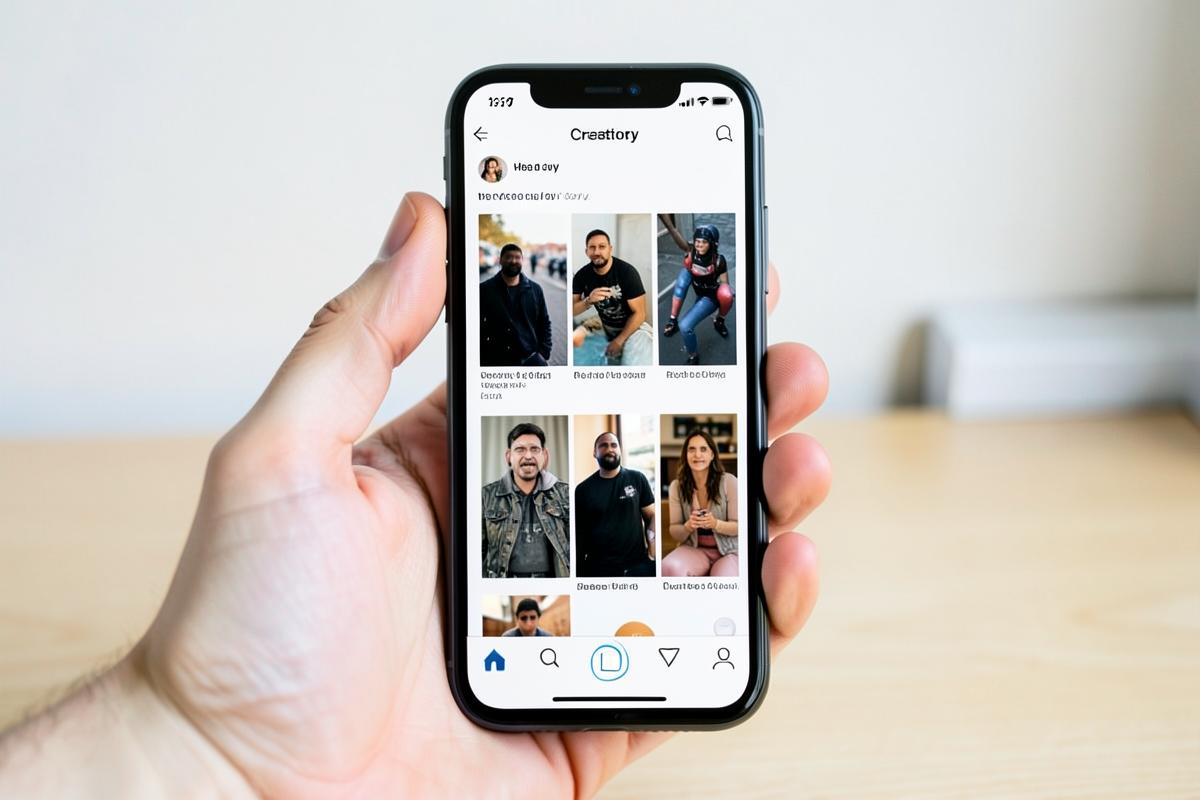
Start with the profile link, not a random clip
Open the creator's profile and copy that page link first. Paste it into the box on ssstiktok.media and you will usually see a creator card with their name, follower count and a short row of recent posts. That card is your map for the session. It tells you roughly how many videos are public and gives you a starting point before you touch a single download button.
I do not try to grab everything from that one card. TikTok still expects you to open each post individually to fetch the actual video file, so the profile view is mainly for deciding what is worth your time.
Reality check: there is no legitimate way to grab a creator's entire library in one click. Anything that promises that is either lying or scraping in a way that will get blocked quickly, sometimes taking your own access with it.
Work through posts one at a time, in order
Here is the sequence that keeps me from losing my place halfway through a creator's feed:
- Open the profile and scroll to the oldest post you want, or the newest, and pick a direction.
- Tap the post, then use the share icon to copy that single video's link.
- Paste the link into the downloader and wait for the preview to load.
- Choose HD or normal, download, and rename the file immediately.
- Go back to the profile, find the next post in your chosen direction, and repeat.

Working in one direction, oldest to newest or the reverse, is the single biggest thing that stops you from re-downloading the same clip twice or skipping one by mistake.
A naming scheme saves you later
Rename each file the moment it lands, not at the end of the session. I use something like creatorhandle_YYYYMMDD_shortdesc.mp4. It is not elegant, but six months later you can find a specific clip without opening twenty files named video_1, video_2, video_3.
If you are saving for a project rather than personal viewing, keep a plain text or notes list alongside the files with the original link, the post date and the creator's handle for each one. That list matters more than people expect once someone asks where a clip came from.
Why bulk scraping tools cause trouble
It is tempting to look for a tool that hits a profile and pulls every post automatically. Most of those either fail outright or work for a few videos before TikTok's servers start rate limiting the requests. From the outside that shows up as timeouts, broken previews, or a block that also affects normal browsing from the same network for a while.
Pasting one link, waiting for it to resolve, and moving to the next is slower, but it behaves like a normal visitor and does not trip those defenses. For ten or fifteen videos the difference in time is minutes, not hours.
Plan your storage before you start
A batch of HD clips adds up fast. Fifteen minute-long HD videos can easily be two to three gigabytes combined. Before a long session, check free space on your phone or laptop, and consider a dedicated folder or an external drive if you are archiving a lot of material. It is more annoying to run out of space mid-session and lose track of what you already saved than to spend two minutes checking storage first.
Common mistakes people make with multi-video saves
Downloading from the profile grid thumbnail
Thumbnails are not the video. You still need to open the post and copy its own link before the downloader can find the file.
Losing the scroll position
Switching apps repeatedly can reset a feed to the top. Note the last video's caption or date before you leave the profile so you can find your spot again.
Saving everything, including reposts and duets
Check whether a post is original before saving a whole feed. Reposted content is often lower quality and, more importantly, credited to someone else entirely.
Ready to work through a profile?
Paste one post link at a time and keep your own list of what you have saved.
Open TikTok downloaderA note on saving someone's whole catalog
Downloading a handful of favorites for yourself is one thing. Rebuilding a creator's entire library on another platform, or reposting it as your own, is a different situation entirely and can cause real problems for the person who made the work. If you are saving a large set for anything beyond private viewing, ask the creator first. See our note on what is and isn't okay to do with downloaded clips before you go further, and check where your downloads actually end up so you don't lose track of a large batch. If something goes wrong partway through, our support page has quick fixes for stuck downloads.
Quick answers
Short answers to the follow-up questions readers send us about this topic.
- Can I download a whole TikTok profile at once?
- No, and you should not try. Bulk scrapers get blocked quickly and often break the platform's rules. Work through the posts you actually need, one link at a time.
- How do I keep track of many files?
- Rename each file as you save it — creator handle, short topic, date — and keep one folder per creator or project. Two minutes of naming saves a long search later.
- Why do some posts from a profile fail?
- Individual posts can be private, region-limited or have downloads disabled by the creator, even when the rest of the profile is public.
- Is there a limit on how many I can save?
- There is no hard limit here, but rapid repeated requests from one connection can be throttled. Space them out and the process stays reliable.
Related articles
Other guides that answer the questions people usually ask straight after this one.
Common TikTok Download Errors and How to Fix Them Fast
Invalid link, no data, stuck at fetching, empty file — the errors people actually hit, and the fix for each one.
Read guideHow to Download TikTok Videos in HD Quality Without Losing Clarity
What HD really means for a vertical clip, how to tell before you save, and the steps that keep the file sharp afterwards.
Read guideBest Tips to Credit Creators When You Download Their Videos
How to credit properly on each platform, what credit does not replace, and simple templates you can reuse.
Read guide